
Update your base over USB
About five minutes.
iPhone or iPad with USB-C
What you need
- The CoachSigns app, updated to the newest version.
- Your base and its USB-C cable.
- An iPhone 15 or newer, or an iPad with a USB-C port.
- Android phone, or an iPhone with a Lightning port? Use a computer.
Get the base ready
Plug the base into your iPhone or iPad.
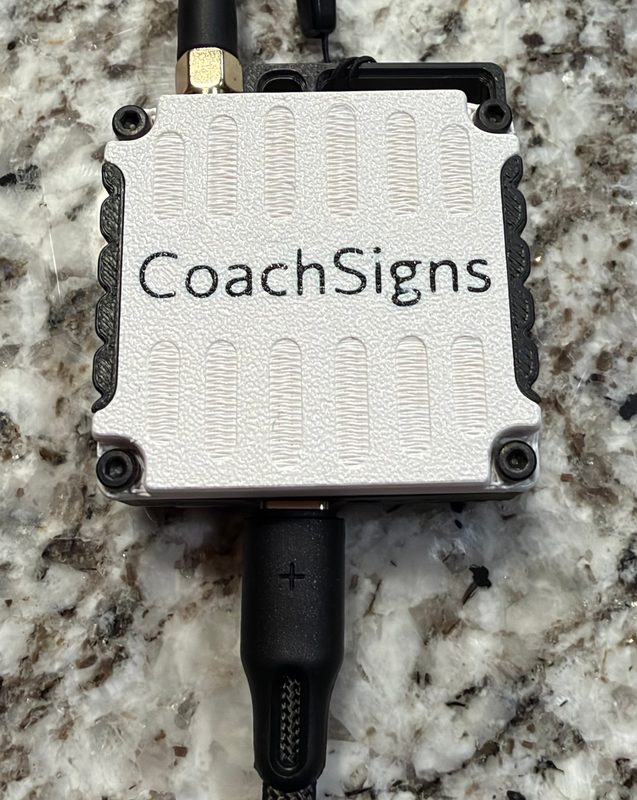
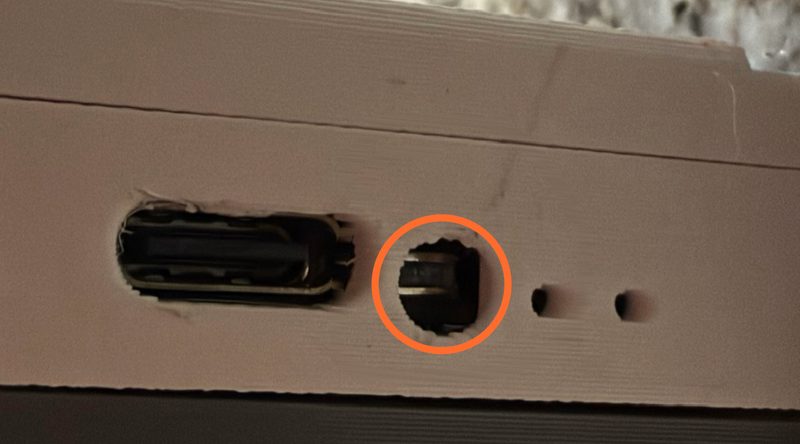
Double-tap the reset button next to the cable — two quick presses.
In the Files app, a drive named RAK4631 appears under Locations.

Download the update file
Safari asks before it downloads the file. It lands in the Files app, in Downloads.
Move it to the base
In Downloads, press and hold CoachSigns-Base-Update and tap Move. Choose RAK4631, then tap Move.
You should see: the drive disappears. A message saying The Operation Can't Be Completed is normal. Tap OK.
Leave the base plugged in for one minute. Do not press the reset button or unplug the base.
After that, if the RAK4631 drive is showing, press the reset button once and wait one more minute.
You should see: the green light gives a quick flash every few seconds. Done — your watches and settings are kept.
Mac or Windows computer
What you need
- The CoachSigns app, updated to the newest version.
- Your base and its USB-C cable.
- A Mac or Windows computer, with this page open on it: coachsigns.com/base-update
Download the update file
Your browser may ask before it downloads the file. It lands in your Downloads folder.
Copy it to the base
Plug the base into your computer.
Double-tap the reset button next to the cable — two quick presses.
A drive named RAK4631 appears on the Desktop or in the Finder sidebar on a Mac, under This PC in File Explorer on Windows. Drag CoachSigns-Base-Update onto it.
You should see: the drive disappears. A copy or eject error at that moment is normal.
Leave the base plugged in for one minute. Do not press the reset button or unplug the base.
After that, if the RAK4631 drive is showing, press the reset button once and wait one more minute.
You should see: the green light gives a quick flash every few seconds. Done — your watches and settings are kept.
Check
Open the CoachSigns app: Settings → Firmware. The Main base row shows Bootloader 0.9.2. If the app then offers a base update, install it from the app.
Troubleshooting
- No drive after the double-tap. Double-tap faster — two quick presses, close together — and try again. Still no drive? It has to be a data cable — charge-only cables look identical. Use the cable that came with your base.
- “Allow accessory to connect?” Macs with Apple silicon and iPhones may ask this. Choose Allow.
- Have Step 1 and Step 2 files from before? Delete them. They are not needed.
- Anything else. Send us a note and we reply within 24 hours.
Have a second base? Do the same on it.